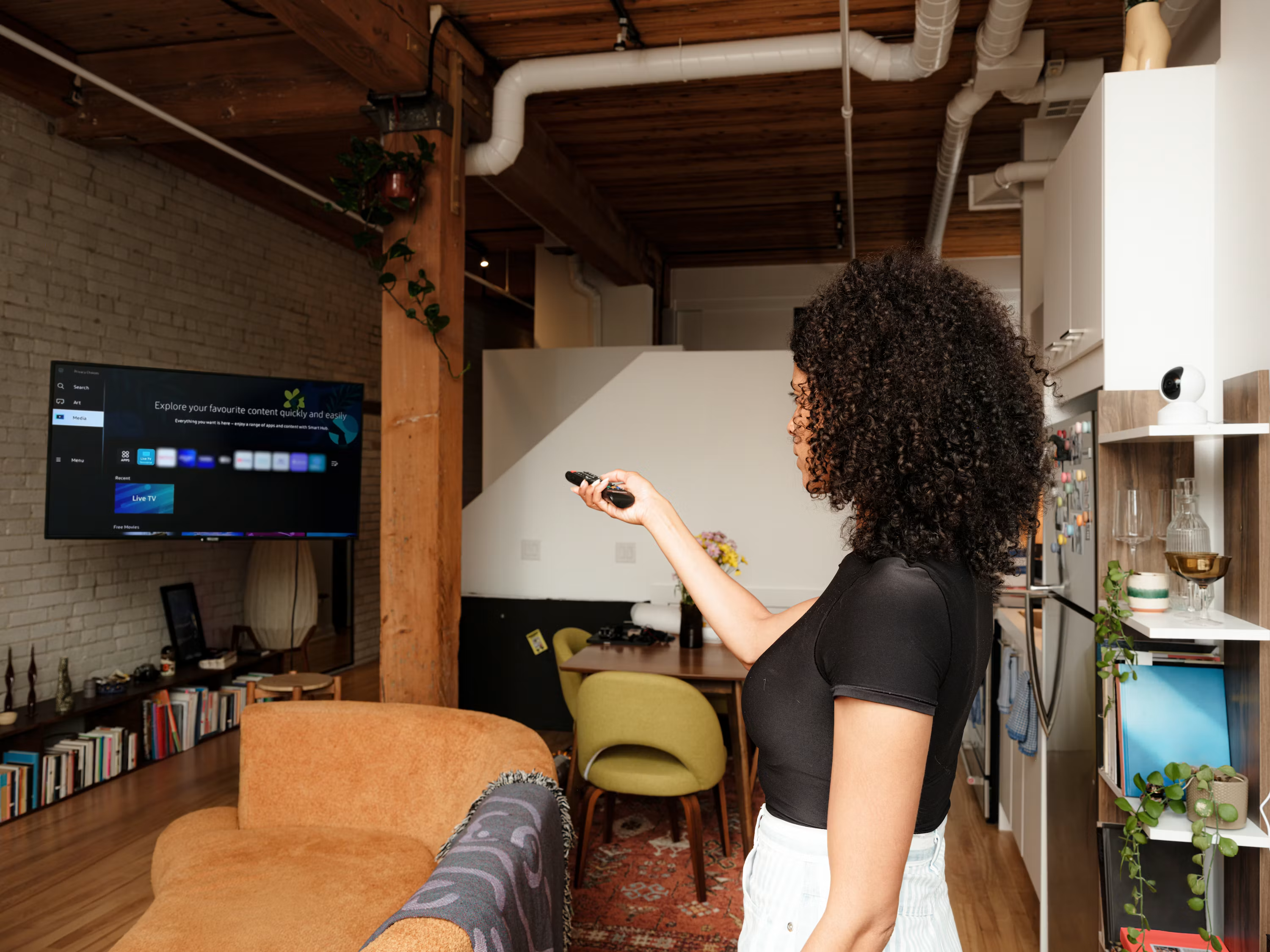
Set up IPTV on Samsung Smart TV
Check your Samsung model and year for a Tizen player that accepts your playlist or login format.
Before you begin
Press Home to open Smart Hub. Find your model code in the support settings or on the back panel.
Set up your source
Open Apps and search for a player by name. Read its description for M3U support or the login type you received. Install the app and add it to Home.
Check playback
Launch the player from its home screen tile. Check that your profile is saved and the stock remote opens the channel list. Close and reopen the app to see whether a saved favourite is still easy to find.
When something goes wrong
If an app found on your phone is missing on the TV, the Samsung catalogue can differ by region and model. Ask for a player compatible with your exact model code.
Choosing a player for your Samsung
Start with one channel you expect to watch regularly. Do you rely on subtitles, want to change channels using number buttons, or browse a programme guide most evenings? Look for that specific function in the descriptions of two players. Then try it on the television with your own remote. This keeps a long feature list from outweighing the one action you will actually perform every evening.
Connecting the right playlist
If the TV player displays a pairing code or management address, leave that screen open while following the publisher’s instructions on another device. Compare the app name on both screens. A page for an entirely different player can show similar fields. Return to the TV once the source is saved. Reload the player, select the name you just assigned and test a channel before organising the list.
Reading the first test result
If no profile appears, check whether you paired the correct television. If a profile appears without groups, check the source type and whether its details are valid. If groups and channels appear but one channel fails, compare a second channel first. Record its name, the time and the difference between the two results. Support can suggest a much more targeted next step from that information.
What you see and what to check next
| What you see | Next check |
|---|
| My phone finds the app, but the TV does not. | Search directly from Smart Hub on the model you intend to use. If the store has no listing, ask support for an alternative for this television. |
| The TV shows a pairing code; my phone displays a URL field. | Compare player names on both screens. Use the management address displayed by the TV. Keep your personal playlist URL out of screenshots you forward to anyone. |
| I cannot return from the channel list to the previous group. | Try Back on the Samsung home screen first. If it works there, check which symbol the player uses to navigate back and try a short press. |
Documentation · Samsung Smart Hub